

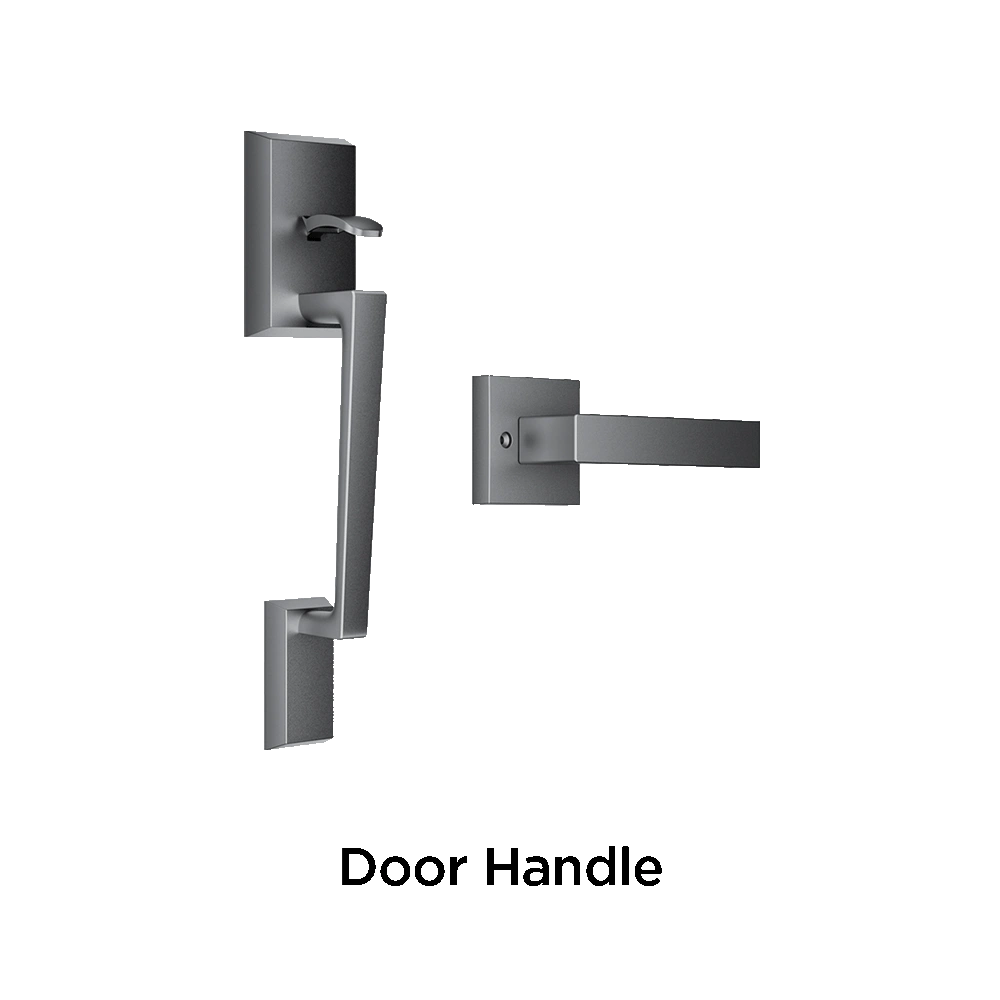


How to Turn Off Smart Lock?
In an age where smart home technology is rapidly becoming the norm, smart locks have emerged as an integral part of residential and commercial security systems. These intelligent devices offer convenience, remote access, biometric authentication, and enhanced safety. However, users may occasionally need to disable or turn off a smart lock for various reasons—ranging from troubleshooting, resetting, or switching back to traditional locks.
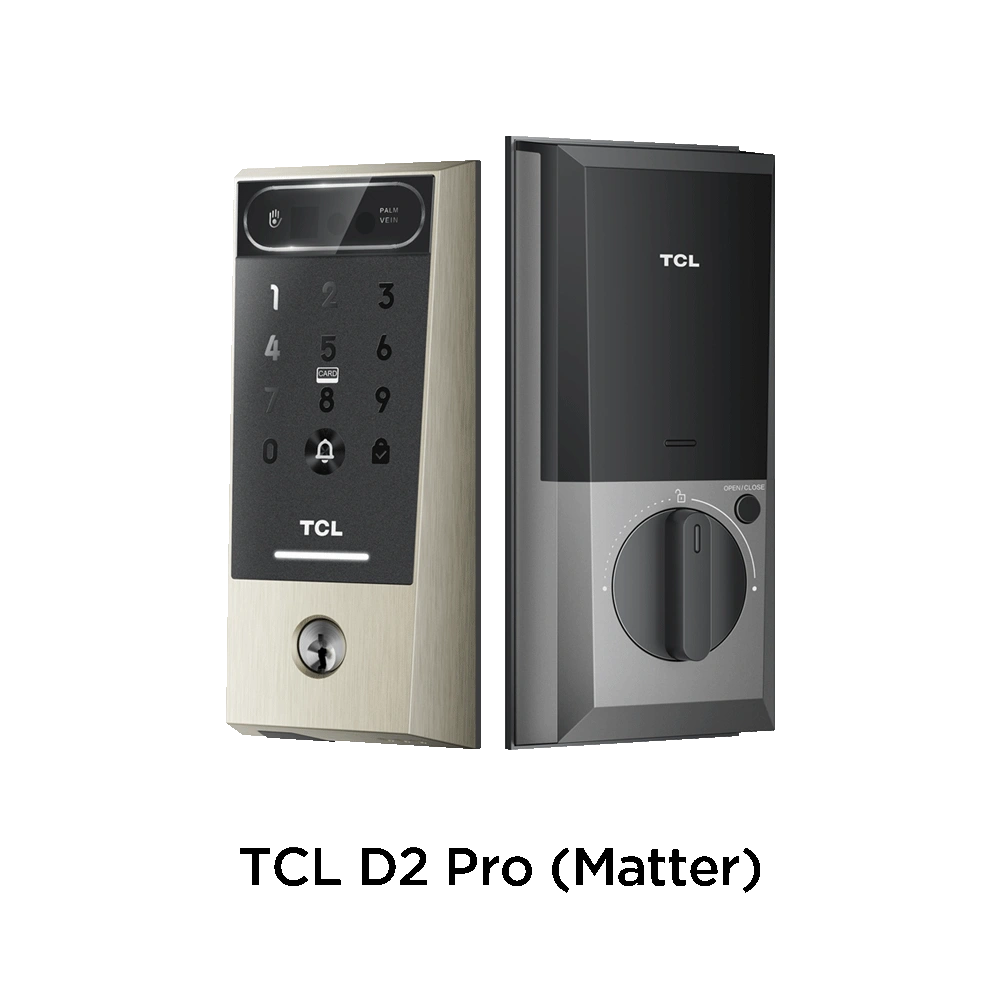
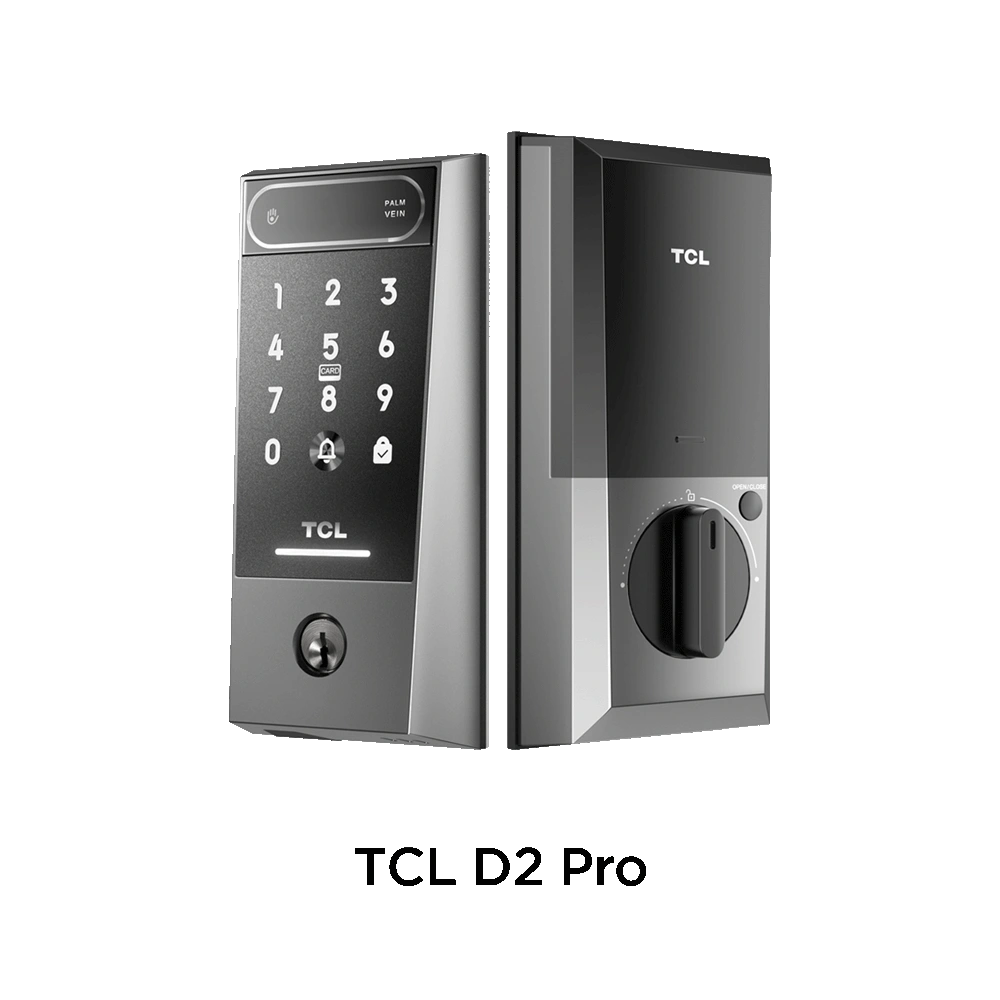
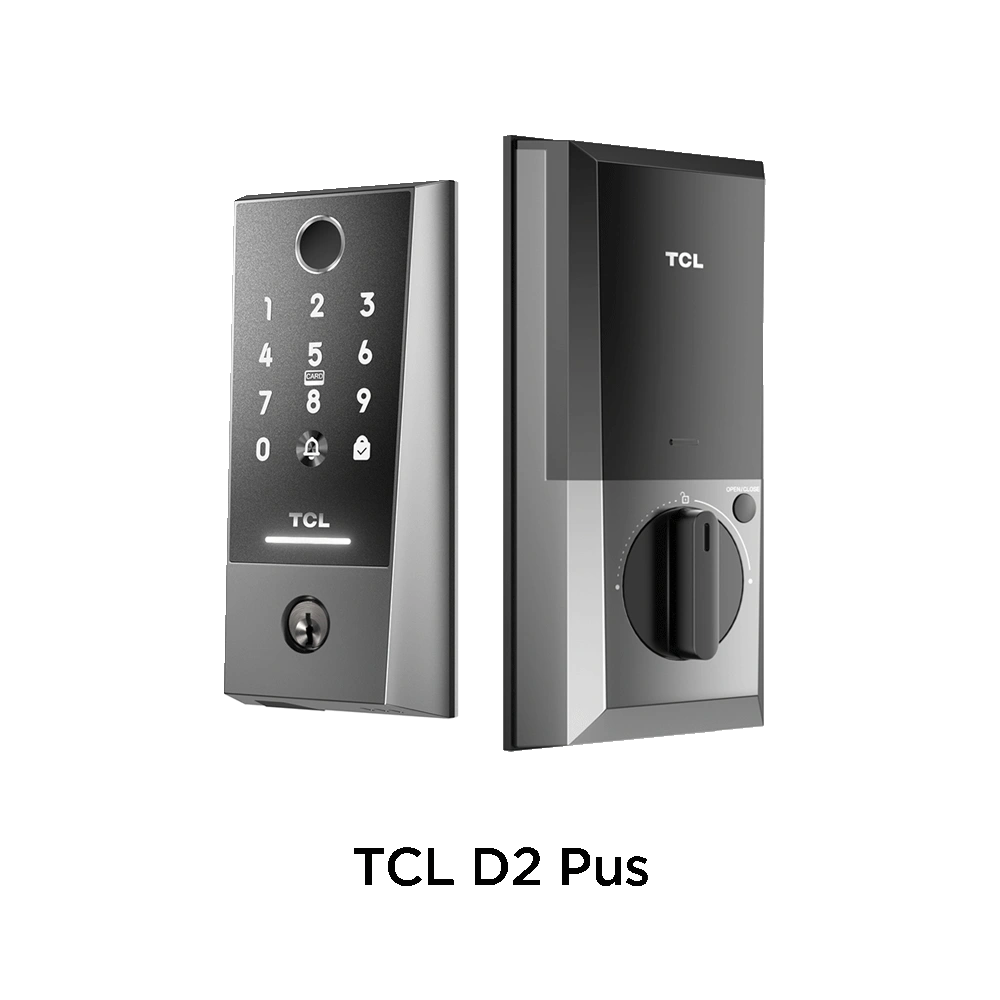
This guide dives deep into the process of turning off a smart lock, focusing on TCL’s D2 Pro palm vein door lock and D2 Plus fingerprint door lock, two cutting-edge products redefining smart home security. We will discuss general disabling procedures, specific steps for TCL models, reasons for turning off a smart lock, and best practices.
Whether you’re a tech-savvy homeowner, an installer, or a new user of TCL smart locks, this comprehensive guide is tailored to give you actionable insights.
Table of contents
Chapter 1: Understanding Smart Locks and Why You Might Turn Them Off What is a Smart Lock? Why Turn Off a Smart Lock? Chapter 2: Overview of TCL Smart Locks TCL D2 Pro Palm Vein Door Lock Key Features: When to Turn Off: TCL D2 Plus Fingerprint Door Lock Key Features: When to Turn Off: Chapter 3: How to Turn Off a Smart Lock – General Approach Step 1: Disconnect Power Source Step 2: Disable Wireless Connectivity Step 3: Factory Reset Step 4: Remove from Smart Home Systems Step 5: Switch to Manual Mode Chapter 4: How to Turn Off TCL D2 Pro Palm Vein Door Lock Method 1: Via TCL Home App Method 2: Manual Reset Method 3: Power Removal Chapter 5: How to Turn Off TCL D2 Plus Fingerprint Door Lock Method 1: Disable Fingerprint Functionality Method 2: Reset the Smart Lock Method 3: Remove from App and Power Off Chapter 6: Important Considerations Before Disabling Smart Locks 1. Backup Admin Data 2. Inform Authorized Users 3. Use Manual Key as Fallback 4. Check for Firmware Updates Chapter 7: Frequently Asked Questions Q1: Can I temporarily disable my smart lock without losing data? Q2: What happens if I turn off a smart lock during an update? Q3: Does disabling biometric access disable all smart features? Chapter 8: Security Implications of Turning Off Smart Locks Chapter 9: TCL's Innovation in Smart Lock Technology Why Choose TCL? Chapter 10: Conclusion
Chapter 1: Understanding Smart Locks and Why You Might Turn Them Off
What is a Smart Lock?
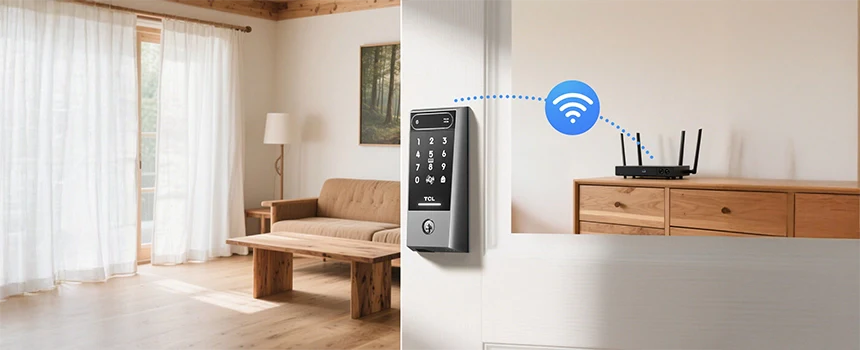
A smart lock is an electromechanical lock that allows users to lock and unlock doors using smartphones, keypads, biometric inputs, or voice commands—without needing a physical key. Integrated with Wi-Fi, Bluetooth, or Zigbee, smart locks sync with apps and smart home ecosystems.
Why Turn Off a Smart Lock?
Turning off or disabling a smart lock doesn't always mean removing it. It can refer to:
-
Deactivating its electronic features
-
Switching to manual mode
-
Resetting to factory settings
-
Disabling specific biometric or wireless connectivity options
Common reasons include:
-
Battery replacement
-
Troubleshooting connectivity
-
Switching users
-
Security concerns
-
Transitioning to another lock or home automation system
-
Temporarily using manual access
Chapter 2: Overview of TCL Smart Locks
TCL, a global electronics leader, has expanded into the smart home market with innovative smart lock solutions. Among their most renowned entries are the D2 Pro palm vein door lock and the D2 Plus fingerprint door lock, designed for ultimate convenience and security.
TCL D2 Pro Palm Vein Door Lock
Key Features:
-
Palm vein recognition for high-security biometric access
-
Multiple unlocking modes: palm vein, passcode, IC card, mobile app, mechanical key
-
Remote management through the TCL Home App
-
Anti-peep virtual password input
-
Real-time alerts and access logs
When to Turn Off:
-
If palm vein sensor malfunctions
-
To reset the system for a new user
-
To switch to another biometric or manual mode
-
During maintenance or software updates
TCL D2 Plus Fingerprint Door Lock
Key Features:
-
High-precision fingerprint sensor
-
5-in-1 unlocking: fingerprint, passcode, app, IC card, mechanical key
-
Automatic lock/unlock system
-
Emergency power supply port
-
Multiple security layers (anti-peeping, lockout alarms)
When to Turn Off:
-
When changing primary users
-
If fingerprint recognition fails
-
Before performing a hard reset
-
When installing a new smart lock system
Chapter 3: How to Turn Off a Smart Lock – General Approach
Turning off a smart lock involves either a temporary or permanent deactivation. Here are general steps that apply to most smart lock brands, including TCL.
Step 1: Disconnect Power Source
-
Battery removal is the simplest method. Most smart locks, including TCL models, use AA or rechargeable lithium batteries.
-
For D2 Pro and D2 Plus, gently remove the back panel and take out the battery pack.
Step 2: Disable Wireless Connectivity
Via the app or directly on the device:
-
Turn off Bluetooth/Wi-Fi from the settings menu in the TCL Home App.
-
This stops remote access and cloud syncing.
Step 3: Factory Reset
Each model has specific steps:
-
For TCL D2 Pro, press and hold the reset button (usually inside the battery compartment) for 10–15 seconds until the LED indicator flashes.
-
For D2 Plus, use a similar method or follow on-screen/app instructions to initiate a full reset.
Step 4: Remove from Smart Home Systems
If your lock is integrated into Alexa, Google Home, or Apple HomeKit:
-
Go to the respective platform settings and unlink or unpair the lock.
Step 5: Switch to Manual Mode
-
Use the mechanical key included with TCL locks to operate manually.
-
Keep the digital interface disabled if required.
Chapter 4: How to Turn Off TCL D2 Pro Palm Vein Door Lock
This advanced smart lock requires careful handling during deactivation.

Method 1: Via TCL Home App
-
Open TCL Home App.
-
Navigate to the connected D2 Pro palm vein door lock.
-
Tap on Settings > Advanced Options.
-
Select Disable Palm Vein Recognition.
-
Optionally, turn off remote control access.
Method 2: Manual Reset
-
Remove the rear cover of the lock.
-
Locate the reset button beside the battery slot.
-
Hold it down until you hear a confirmation beep or the LED flashes.
-
Confirm on the app (if prompted).
-
All user data, including palm vein templates, will be erased.
Method 3: Power Removal
-
Take out the battery pack completely.
-
Use the mechanical key if door access is still needed.
Note: Disabling the smart features of D2 Pro does not physically remove the lock. It can be re-enabled anytime via the app or a reset.
Chapter 5: How to Turn Off TCL D2 Plus Fingerprint Door Lock
This model balances biometric precision with user flexibility. To disable:
Method 1: Disable Fingerprint Functionality
-
Open TCL Home App.
-
Select your D2 Plus fingerprint smart lock.
-
Choose Fingerprint Settings.
-
Tap Disable fingerprint access.
-
Remove registered fingerprints (optional).
Method 2: Reset the Smart Lock
-
Open the rear battery compartment.
-
Locate and hold the reset button.
-
Wait for 10 seconds or until the light blinks.
-
Lock resets to factory defaults.
Method 3: Remove from App and Power Off
-
Unpair from the app and disconnect Bluetooth.
-
Take out batteries to cut off all digital operations.
Chapter 6: Important Considerations Before Disabling Smart Locks
1. Backup Admin Data
Before resetting your TCL smart lock, export access logs or admin settings via the app.
2. Inform Authorized Users
Disabling a smart lock can lock out family or staff members. Notify users beforehand.
3. Use Manual Key as Fallback
Ensure the TCL D2 Pro or D2 Plus mechanical keys are accessible and functioning.
4. Check for Firmware Updates
Some issues that prompt disabling may be fixed with firmware updates rather than full resets.
Chapter 7: Frequently Asked Questions
Q1: Can I temporarily disable my smart lock without losing data?
Yes. Simply disconnect it from Wi-Fi or remove its batteries. All TCL smart lock data remains stored unless a factory reset is performed.
Q2: What happens if I turn off a smart lock during an update?
Interrupting updates can cause firmware corruption. Always wait for completion before powering off.
Q3: Does disabling biometric access disable all smart features?
No. You can disable fingerprint or palm vein access individually on TCL models while keeping app control and keypad input active.
Chapter 8: Security Implications of Turning Off Smart Locks
When you disable a smart lock, you may reduce remote control or monitoring, increasing reliance on mechanical security. Consider:
-
Re-enabling biometric authentication after maintenance
-
Re-adding users manually if factory reset was used
-
Periodically checking if features have been unintentionally disabled
TCL’s smart locks are designed to resume functionality smoothly once powered back on or reconfigured.
Chapter 9: TCL's Innovation in Smart Lock Technology
Why Choose TCL?
TCL is recognized for blending affordability with innovation. Their D2 Pro palm vein door lock and D2 Plus fingerprint door lock offer:
-
Military-grade biometric precision
-
Seamless app integration
-
Robust security and backup options
-
Elegant design for modern homes
Even when powered down, TCL locks retain an ergonomic and premium build quality, ensuring users feel secure with or without smart features enabled.
Chapter 10: Conclusion
Disabling a smart lock can be a practical decision in many scenarios—whether for troubleshooting, transitioning, or enhancing control. With TCL’s D2 Pro and D2 Plus, users are equipped with the flexibility to disable, reset, or reconfigure their smart locks without compromising overall safety.
As smart home technologies evolve, TCL continues to lead with intelligent designs that adapt to your lifestyle. Whether you're using the advanced palm vein recognition of the D2 Pro or the fingerprint precision of the D2 Plus, you remain in full control—on or off.




Leave a comment
This site is protected by hCaptcha and the hCaptcha Privacy Policy and Terms of Service apply.